9 Tooltips Examples to Improve Your Customer Onboarding

Most onboarding fails because users feel unsure about what to do next, not because the actual product is bad. Research backs this up too. 75% of users will abandon a SaaS product within the first week if they don't understand how to use it or how to get value from it. Confusion, not capability, is often the real driver of churn.
Tooltips exist to solve exactly this problem. When used well, they remove friction at the moment it appears and help users move forward without breaking their flow. When used poorly, they become noise. This article breaks down 9 tooltip examples that actually improve customer onboarding, focusing on why they work, not just what they look like.
What a Tooltip Actually Is (and Isn’t)
A tooltip is a small, contextual message that appears next to a specific UI element to explain what it does or what action a user should take next. Its strength lies in timing and placement.
A tooltip is not meant to replace documentation, onboarding emails, or full product tours. If you’re trying to explain an entire feature or workflow in a tooltip, you’re using the wrong tool. Good tooltips are simple by design. They exist to remove a single point of uncertainty and then disappear. That's their entire goal.
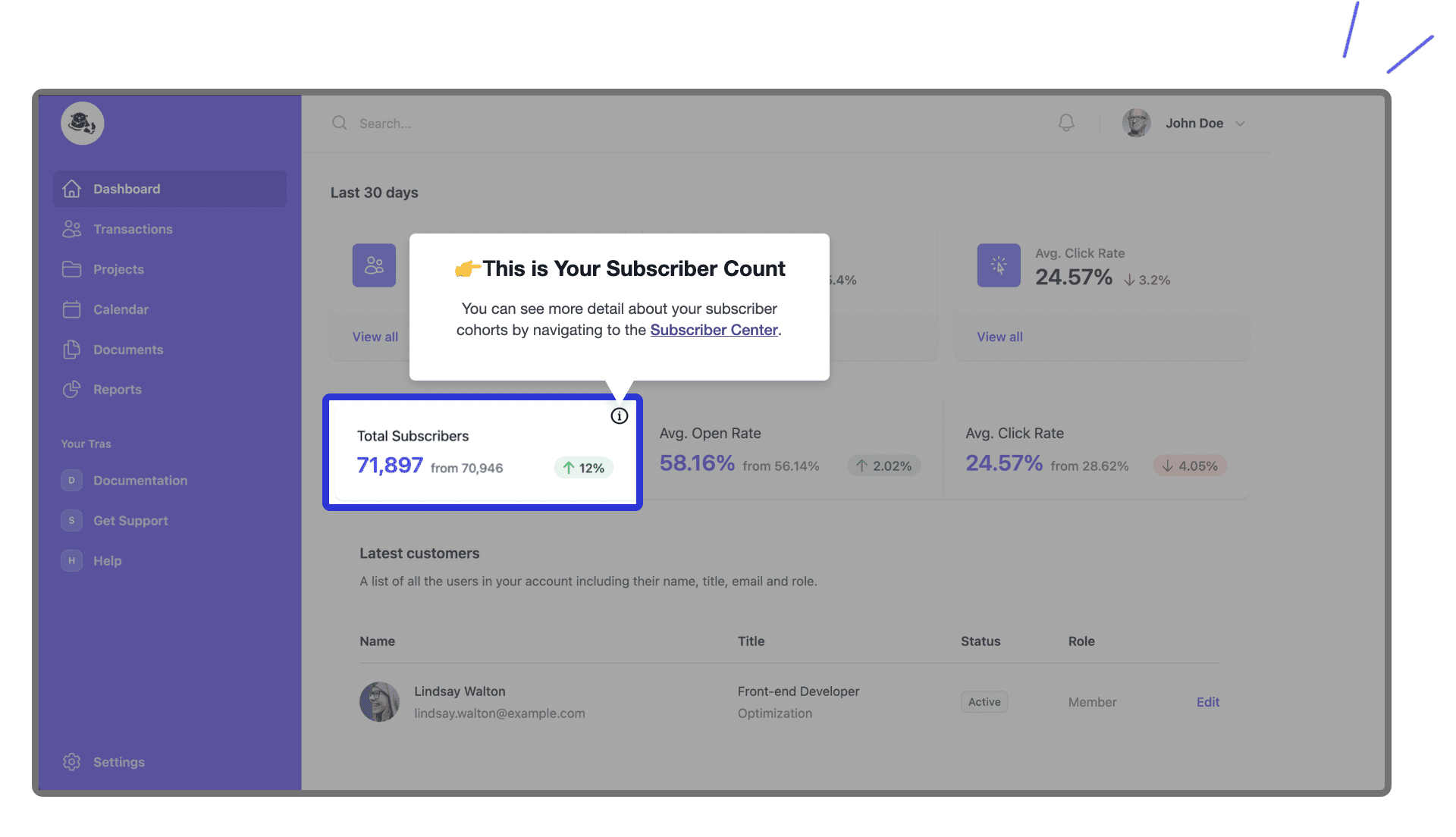
When Tooltips Work Best in Onboarding
Tooltips tend to be most effective in three moments during the user journey.
The first is initial setup, when users are deciding whether your product is worth learning at all. At this stage, clarity matters more than completeness.
The second is feature discovery later on, when users are active but haven’t uncovered all the value your product offers. Many teams underestimate how much value remains hidden simply because users don’t know where to look.
The third moment is hesitation, right before an action that feels risky, irreversible, or unclear. This is often where progress stalls.
Outside of these moments, tooltips usually add more distraction than value.
9 Tooltip Examples That Improve Onboarding
Below are 9 common tooltip patterns that consistently work well across SaaS products. Each example focuses on solving a specific onboarding problem.
1. First-Action Tooltip (Activation)
This tooltip directs users to the first meaningful action they should take after signing up. Instead of explaining the interface, it answers a much more important question: “Where do I start?”
By removing choice overload and guiding users toward an immediate win, this type of tooltip significantly shortens time-to-value. It works because it prioritizes momentum over education.
2. Hidden-Feature Discovery Tooltip
Many powerful features are unused simply because users never notice them. Only 20-40% of features within a SaaS product actually get used, and this is often because users don't know they're there.
This tooltip appears after a user is already active and highlights a shortcut, secondary action, or advanced option that improves efficiency. Because it shows up later in the journey, it doesn’t overwhelm new users.
3. Inline Clarity Tooltip For Complex UI
Some interface elements are easy to misinterpret, especially metrics, toggles, or settings with long-term consequences. This tooltip appears directly next to those elements and explains what will happen if the user interacts with them.
Instead of describing the feature, it focuses on outcomes. That distinction matters, particularly in complex products where early mistakes can be costly.
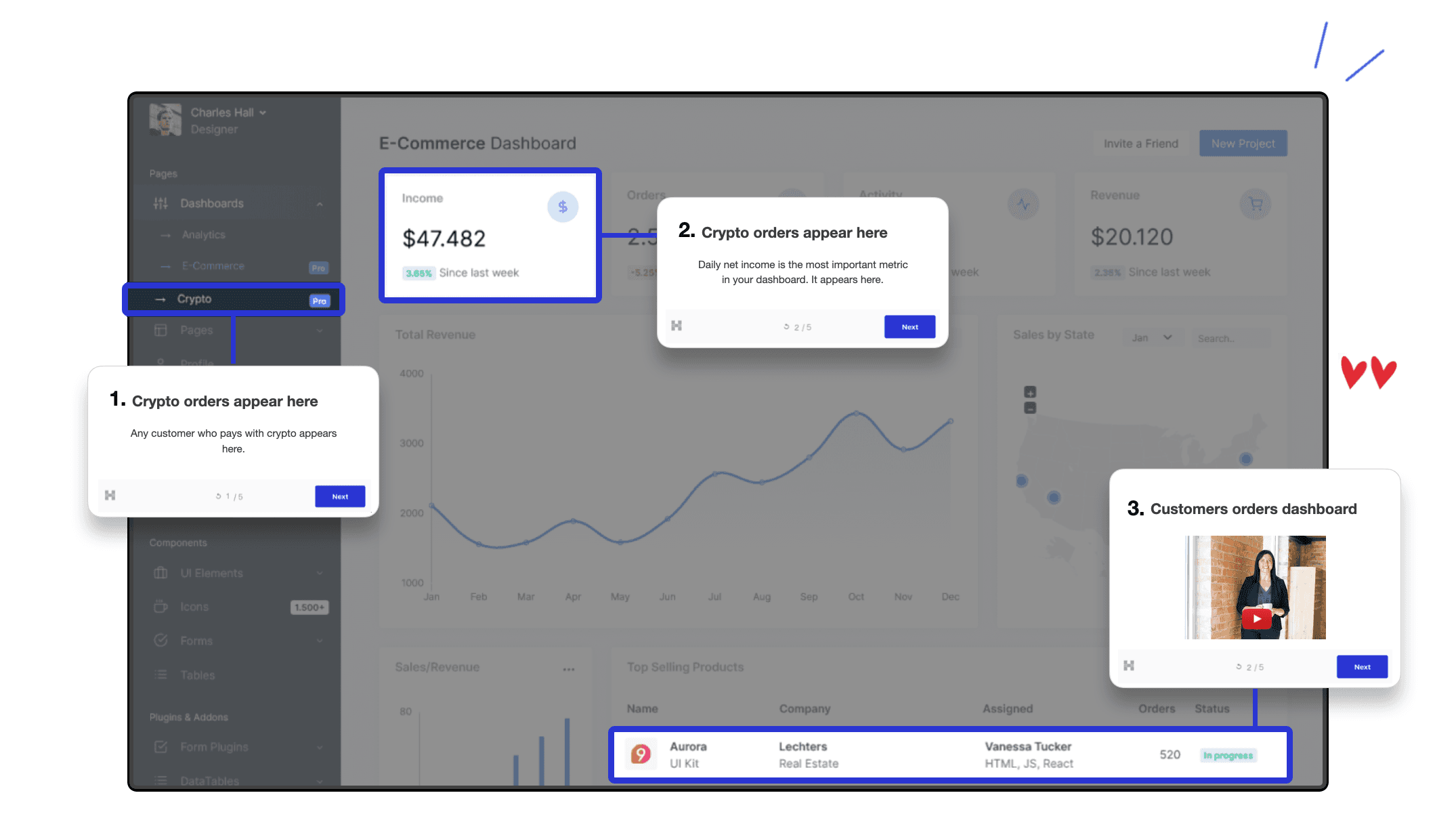
4. Progressive Tooltip in a Flow
Rather than showing multiple instructions at once, progressive tooltips appear step by step as users complete actions. Each tooltip only becomes relevant after the previous step is done.
This approach reduces cognitive load and allows the interface to teach itself. Interactive onboarding flows like this have been shown to significantly increase activation.
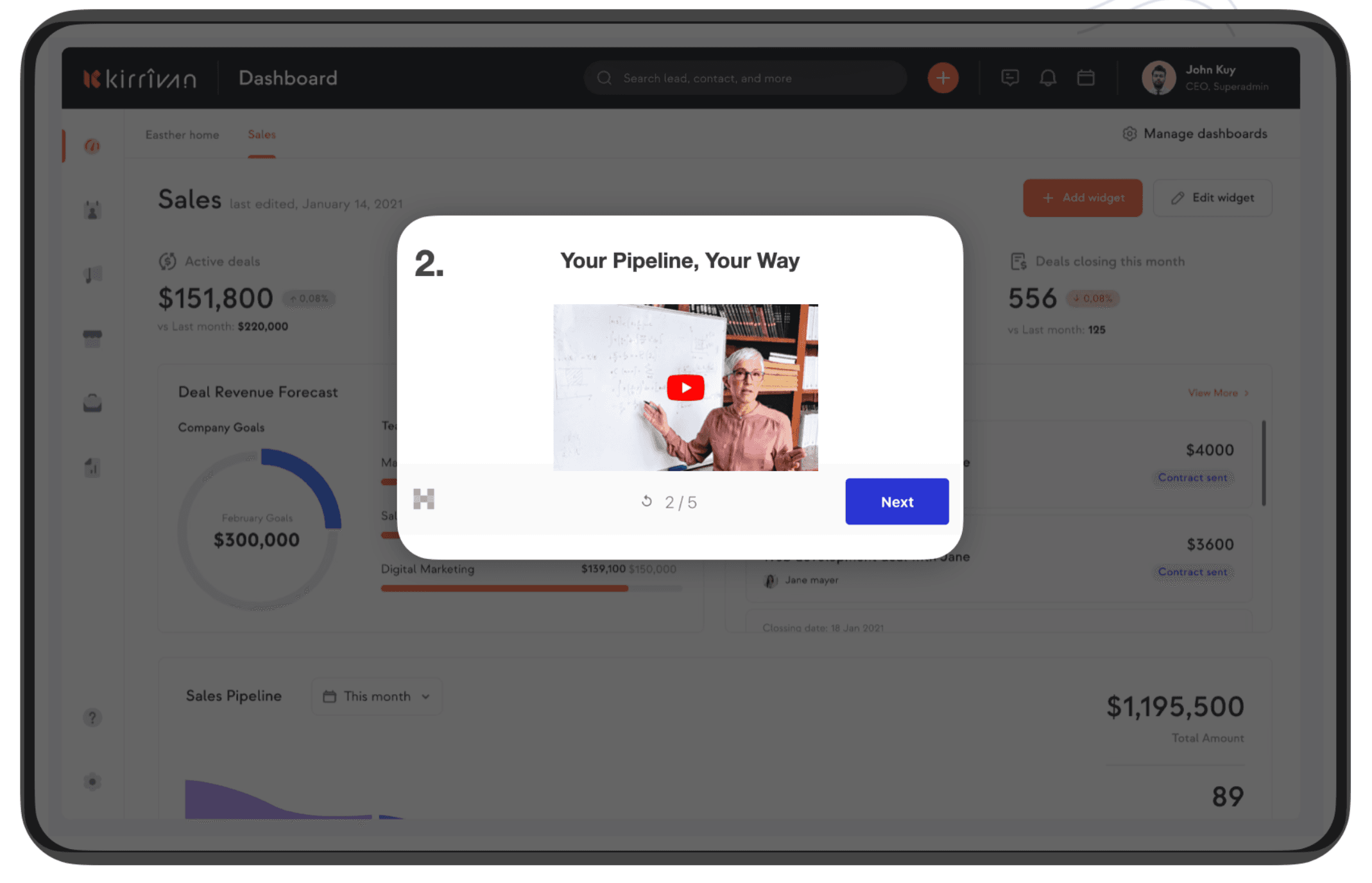
5. Fear-Reducing Tooltip
Some actions feel risky, even when they’re safe. Importing data, publishing content, or changing settings can all trigger hesitation.
This tooltip exists to reassure users by clarifying that an action is reversible, limited to test data, or won’t affect live environments. By lowering perceived risk, it encourages exploration and experimentation.
📚 Also read: 11+ Proven SaaS Growth Hacks for Rapidly Scaling Your SaaS
📚 Also read: Ultimate Guide to Product-Led Growth with 9+ Examples
6. Optional Tooltip With Easy Dismissal
This tooltip offers help without forcing interaction. Users can read it, ignore it, or dismiss it permanently. Respecting user autonomy is especially important for experienced users who don’t need hand-holding. When help is optional, it feels supportive instead of obstructive.
7. Tooltip For Secondary Features
Not every feature is core to onboarding, but some add meaningful convenience or delight. Tooltips can highlight these secondary features without disrupting primary workflows.
Because these tooltips are lightweight and easy to dismiss, they add value without creating friction.
8. Behavior-Triggered Tooltip
Instead of appearing on page load, this tooltip is triggered by user behavior, such as hovering repeatedly, pausing too long, or failing an action.
Because it responds to real intent, it feels timely and relevant. Users are more likely to engage with guidance that appears in direct response to their actions.
9. Time-to-Value Tooltip
This tooltip points users directly to the action that delivers the product’s “aha” moment. Whether that’s generating a report, sending a message, or completing a setup, the goal is to help users experience value as quickly as possible. Reducing time-to-value is one of the strongest predictors of trial-to-paid conversion in SaaS.
Common Tooltip Mistakes
Most ineffective tooltips fail for the same underlying reasons, and that is because the problem it tries to solve isn’t clearly defined.
A common mistake is trying to say too much. Tooltips are often treated like mini help articles, packed with background, definitions, and edge cases. The result is what you would expect: users don’t actually read them. If a tooltip needs multiple sentences to explain itself, it’s usually compensating for a deeper usability issue or trying to replace proper documentation.
Another frequent issue is poor timing. Tooltips that appear the moment a page loads often interrupt rather than help. At that point, users haven’t interacted with anything yet, so the guidance feels abstract.
Tooltips also fail when they explain labels instead of actions. Telling users what a button is called or restating what the UI already shows adds little value. What users actually need to know is what will happen after they click, and whether it’s safe to do so.
Many tooltips try to solve multiple problems at once. They explain the feature, the workflow, the edge cases, and the benefits in a single message. This overwhelms users and defeats the purpose of contextual help. Onboarding works best when guidance is broken into small, situational moments that appear only when relevant.
As a rule of thumb: if a tooltip can’t be understood at a single glance, it’s probably answering the wrong question.
Creating Tooltips the Easy Way
Tooltips only stay effective if teams can iterate on them quickly. If every small change requires engineering time, onboarding inevitably falls behind the product. Non-technical teams need tools that let them create, adjust, and remove tooltips without code. Flexibility matters more than advanced customization.
Hopscotch is designed for simple, effective onboarding. It allows teams to build and manage tooltips visually, attach them directly to UI elements, and control exactly when and who sees them. Instead of overengineering onboarding, Hopscotch focuses on making it easy to reduce confusion and guide users forward as the product evolves.
FAQ
What Is the Main Purpose of Tooltips In Onboarding?
The main purpose of tooltips is to reduce confusion at the exact moment it appears. They help users understand what to do next without forcing them to leave the product or read documentation.
When Should Tooltips Appear During the User Journey?
Tooltips work best during first-time setup, feature discovery later in the journey, or moments of hesitation before a key action. Showing them too early or too often usually reduces their effectiveness.
How Much Text Should a Tooltip Have?
As little as possible. A tooltip should usually be understandable in one or two short lines. If it requires several sentences, it’s likely trying to solve the wrong problem or replace proper documentation.
Are Tooltips Better Than Product Tours?
Tooltips and product tours serve different purposes. Tooltips are better for contextual, moment-based guidance, while product tours are useful for structured walkthroughs. In most cases, lightweight tooltips outperform long, linear tours.
📚 Also Read:
Convert more trials with Hopscotch
Simple and delightful onboarding tours your users will love.