Guides
How to update the Hopscotch Chrome extension
The Hopscotch Chrome extension updates automatically, but sometimes you may need to manually trigger an update to get the latest version.
When to manually update
You may want to manually update the extension when:
- You've been notified about a new feature or fix
- The Hopscotch team has asked you to update
- You're troubleshooting an issue and want to ensure you have the latest version
How to update the extension
Open Chrome and navigate to
chrome://extensions/in your address barEnable Developer mode by toggling the switch in the top-right corner of the page

Click the Update button that appears at the top of the page
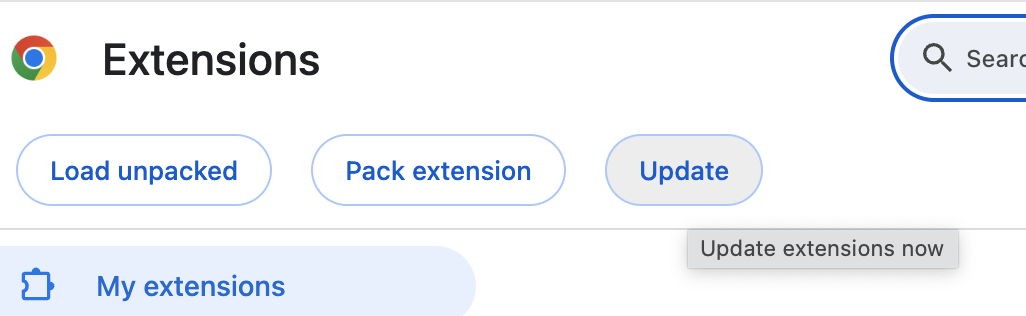
Wait for Chrome to check for and install any available updates
Verify the update
After updating, you can verify you have the latest version:
- Find the Hopscotch extension card on the extensions page
- Check the version number displayed on the card
If you're unsure whether you have the latest version, contact the Hopscotch team and they can confirm the current version number.
Troubleshooting
If the extension doesn't update:
- Try removing and reinstalling the extension from the Chrome Web Store
- Clear your browser cache and try again
- Restart Chrome completely and repeat the update process
Still have questions?
We are here to help. Don't hesitate to reach out by email any time.